 HUVA
Workflow guides
On this page
Send call summaries to the right staff inbox
Choose contacts, route each request to the right roles and channels, and check the recipients before saving.
Active contacts and matching routing rules are saved. Delivery still needs a completed test call and inbox check.
Before you begin
Where: Settings → Receptionist
- Have a monitored staff email address or SMS-capable number.
- Decide which team roles should receive each request type.
- Use a test call and tell the team not to act on the fictional request.
Configure recipients
Contacts identify where notifications go. Roles connect each contact to request rules; they do not grant account access.
Existing contacts may use the previous after-call summary until routing rules are saved. Review every request type before saving.
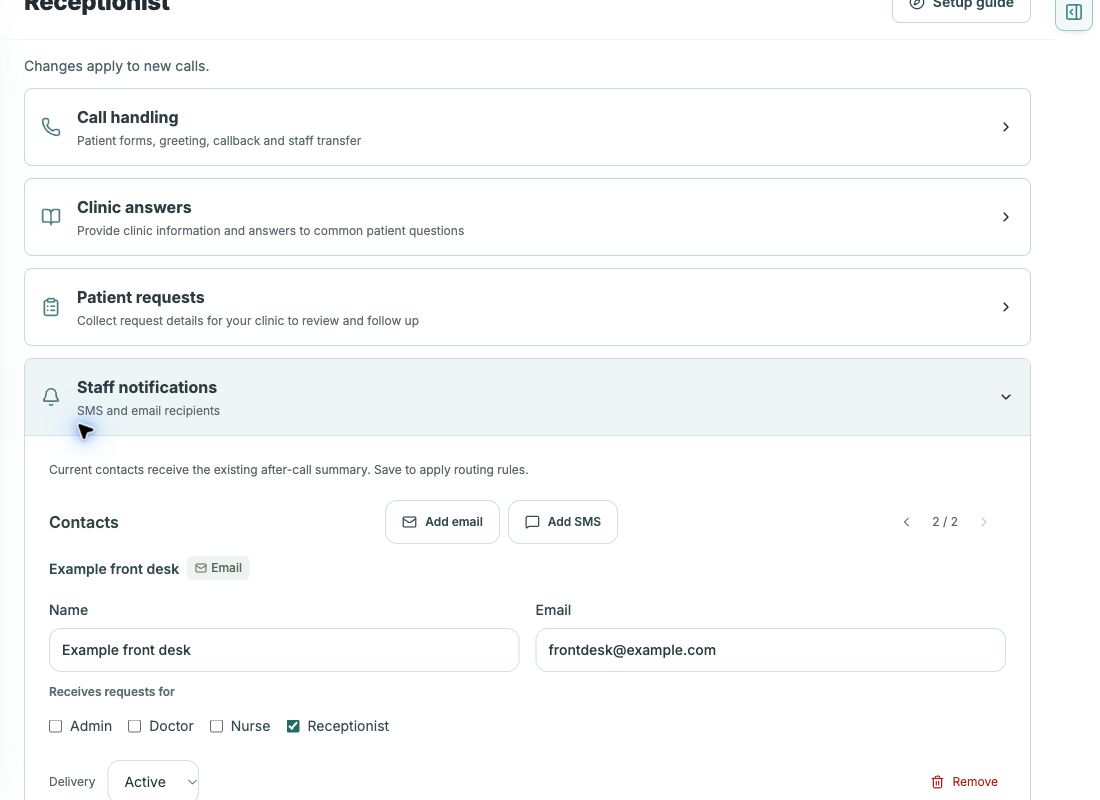
- Open Settings → Receptionist → Staff notifications.
- In Contacts, select Add email or Add SMS.
- Enter a name and the monitored email address or SMS-capable number.
- Under Receives requests for, select the roles this contact covers. Keep Delivery set to Active.
- In Notification rules, select each request type. Choose Send notifications or Off, the roles to notify, and the channels.
- Use Specific contacts only when that request should also go to named contacts. Check the recipient preview for every selected channel.
- Select Save notifications.
Check the result
Confirm the contacts, roles, channels and request rules remain after reloading. No matching active contact means no message is sent.
Video chapters
In this video
Recorded Stage screen states with fictional contacts. Changes were discarded; no call, SMS or email was sent. Follow the written steps to save your own settings.
Verify the outcome
- Complete a test call.
- Find its saved request in Work Queue → Inbound.
- Check the configured inbox and spam folder.
- Compare the received summary with the saved call.
Details
After saving the recipient, complete a test call and check the actual inbox. Open the saved request to complete the next staff action.
Get help
Tell us which task you are trying to finish and what you see on screen.
Contact HUVA
Include the product, screen and non-sensitive error message.
Email HUVADetails
Leave out patient details and credentials.
Troubleshooting
The email did not arrive
Confirm the contact is Active, the request rule is on, the roles or specific contacts match, and Email is selected. Then check spam and compare the completed call with the inbox before retrying.
The preview says no recipient
Add an active contact with a matching role or select a specific contact. SMS needs an SMS contact; an email contact cannot receive SMS.
Source and product scope
Reviewed 2026-10-26. Editorial source: Notion guide.
Examples use fictional or redacted details or an eCW training chart. Follow your clinic’s permissions and current on-screen instructions. HUVA Scribe is a separate Chrome extension; open the intended Progress Note in the supported EHR. Confirm availability for your clinic with HUVA.