 HUVA
Video lessons
Choose a task. Follow the steps. Check the result.
Search tasks in English or Korean. Keep patient information out of search.
Watch a task
30 guides
Short lessons. Real steps.
 1:42
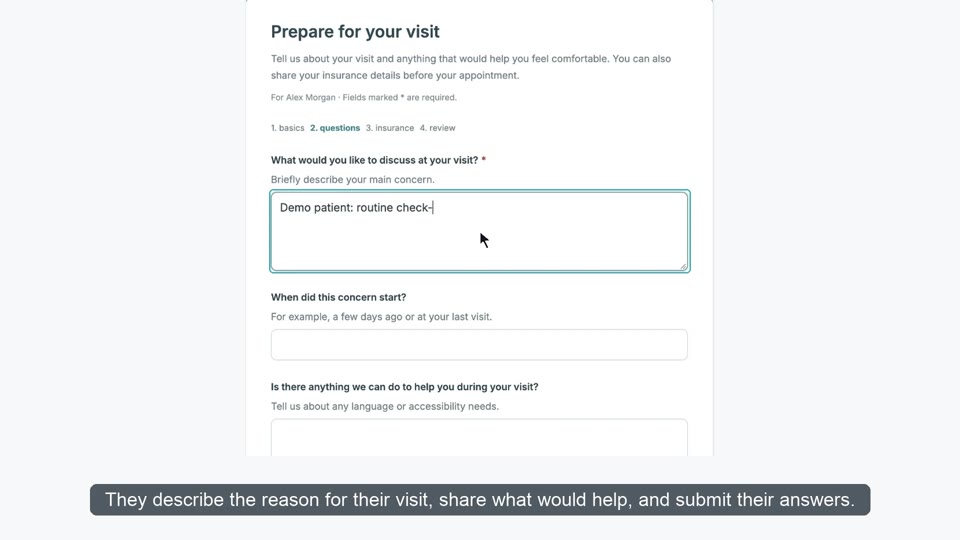
Set up your clinic
A little more time for care: an introduction to the workflow.
 0:22
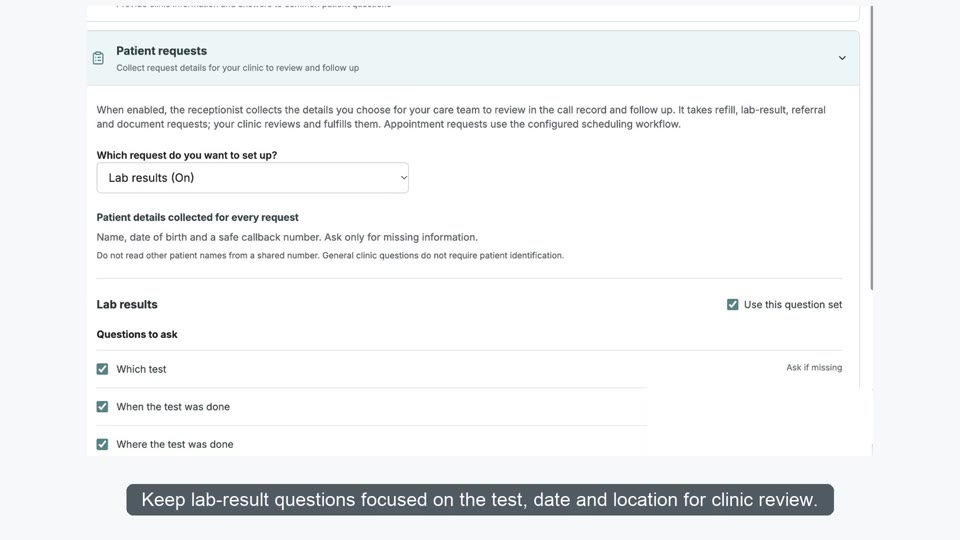
Choose questions for patient requests
Configure the request questions and review the selected details.
 0:35
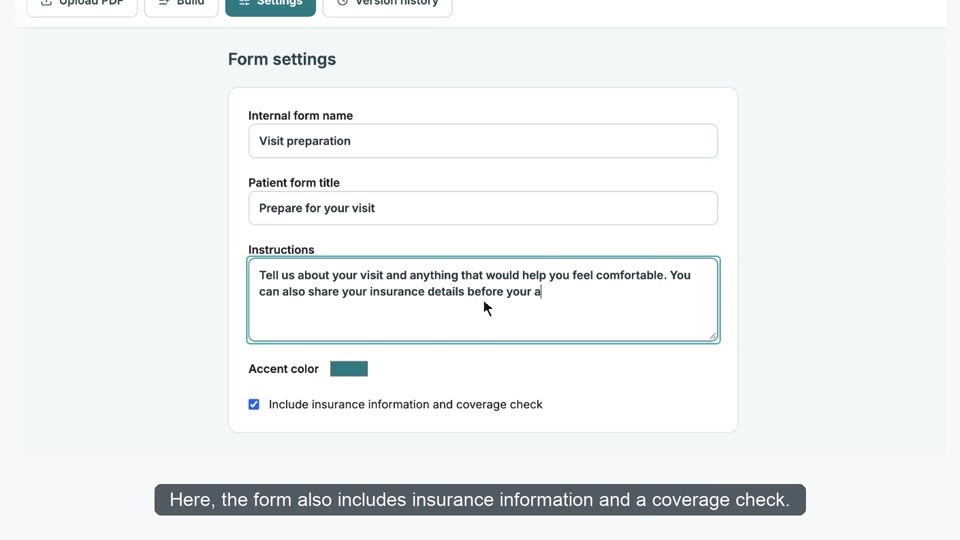
Build, preview and publish a patient form
Build a draft, preview the patient experience and publish the form.
 0:11
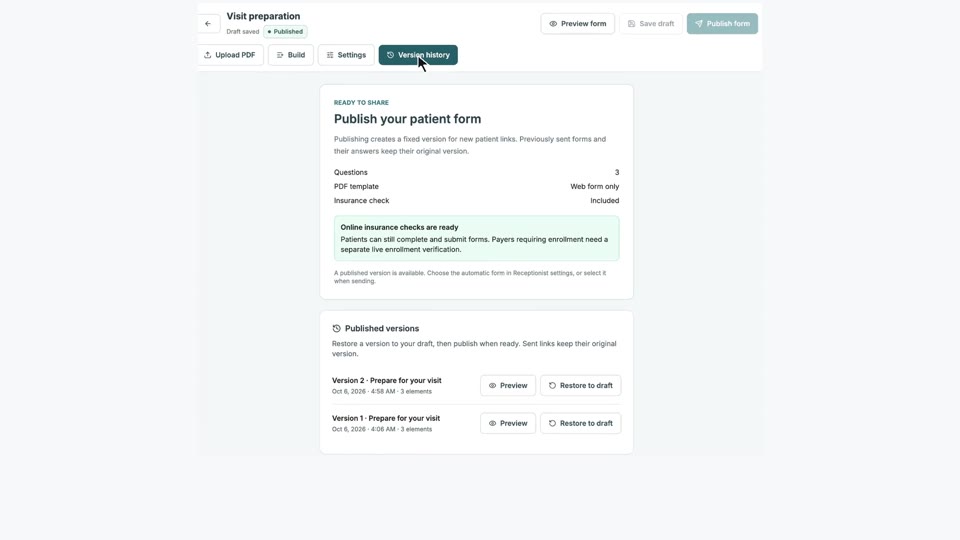
Preview and restore a form version
Inspect a published version before restoring it to a draft.
 0:32
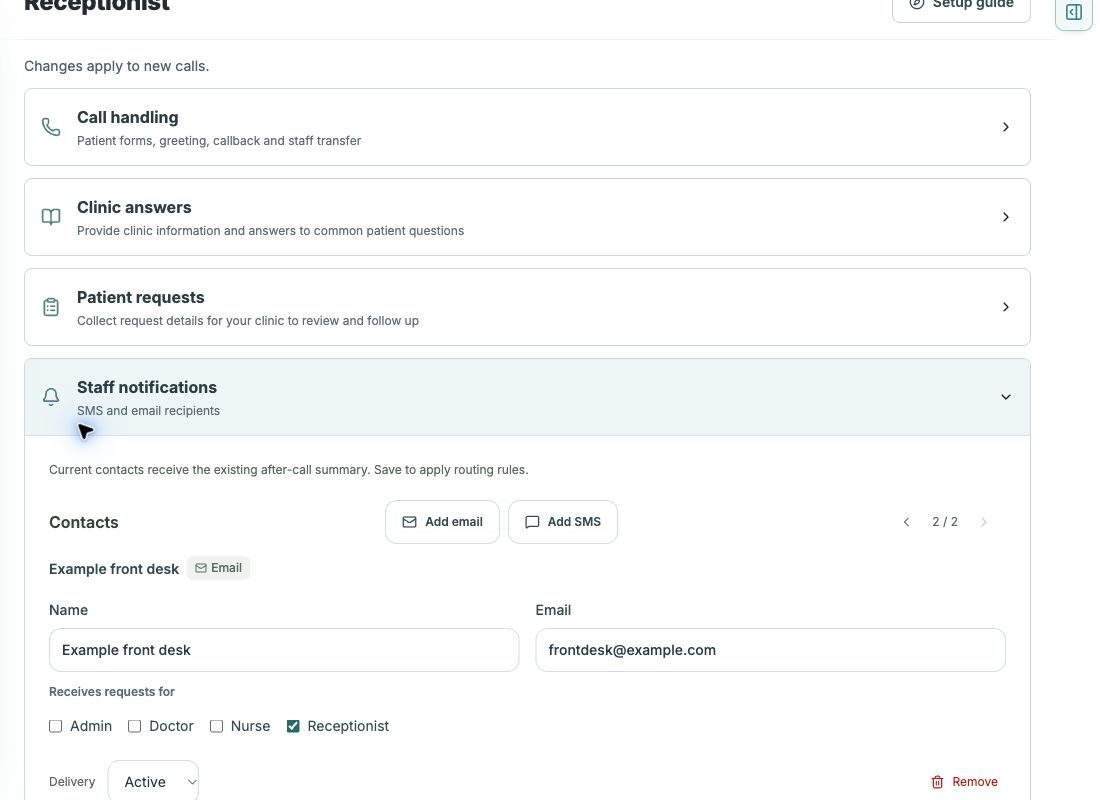
Send call summaries to the right staff inbox
Contacts, roles, request rules, channels and recipient preview.
 1:35
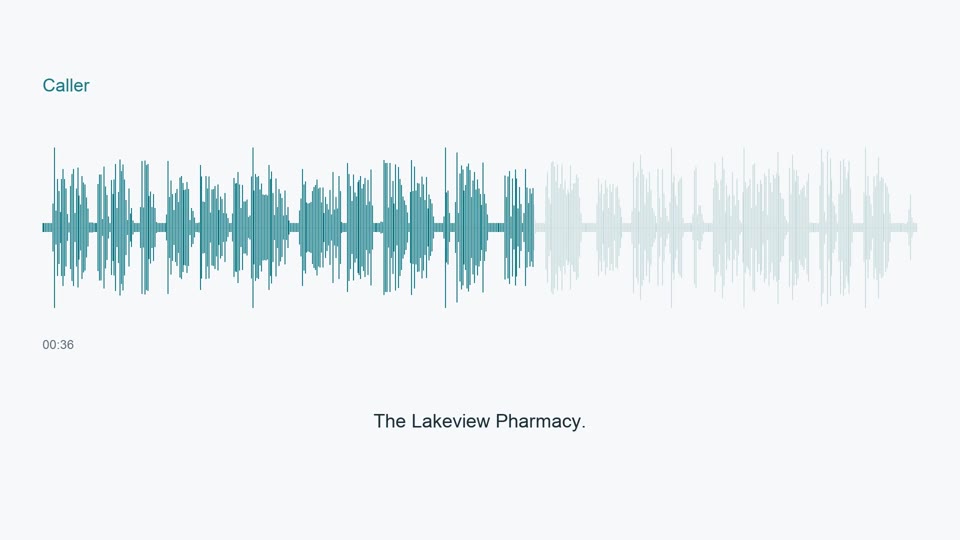
Review a refill request from a call
Follow a refill request from the call to the clinic inbox.
 1:13
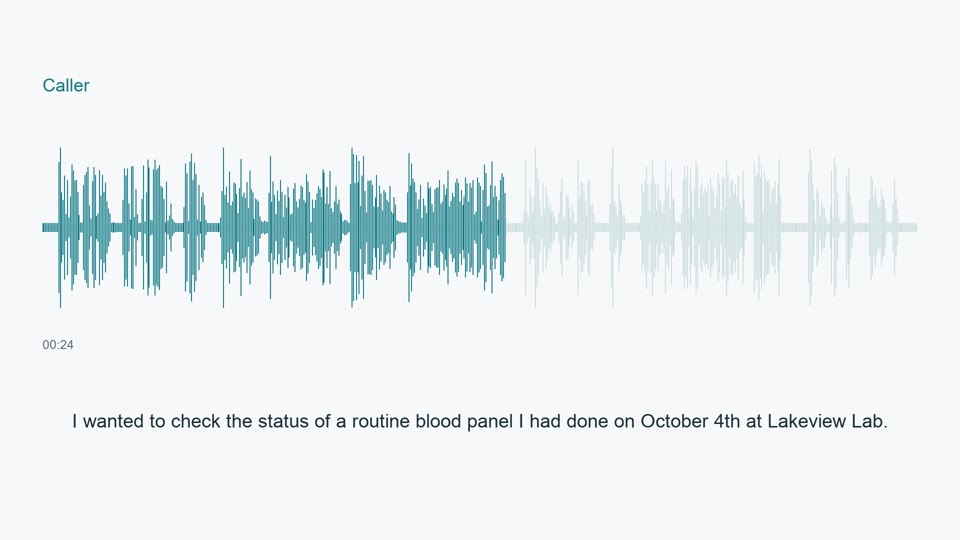
Review a lab-status request
Collect the details behind a lab-status request.
 1:31
Follow up on a referral or document
Trace a referral or document request from caller details to the inbox.
 0:43
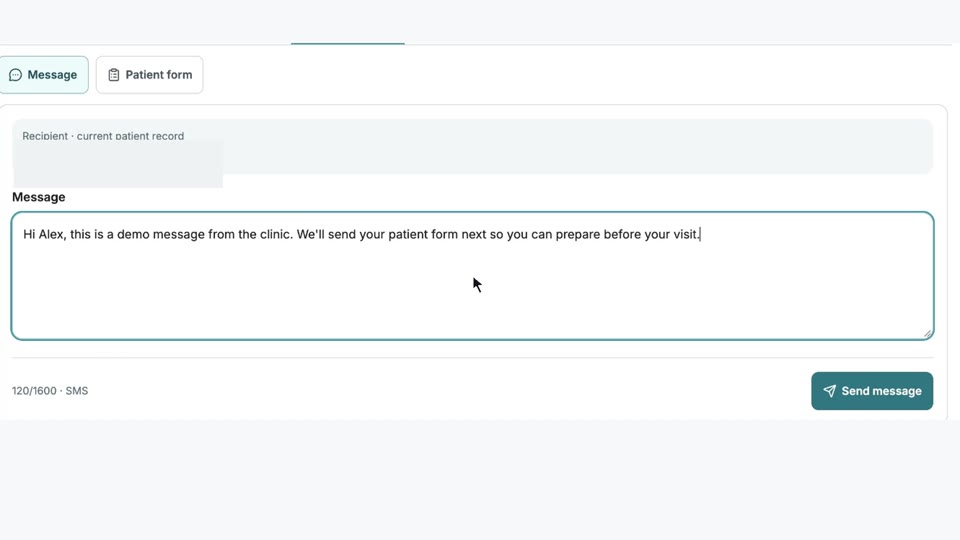
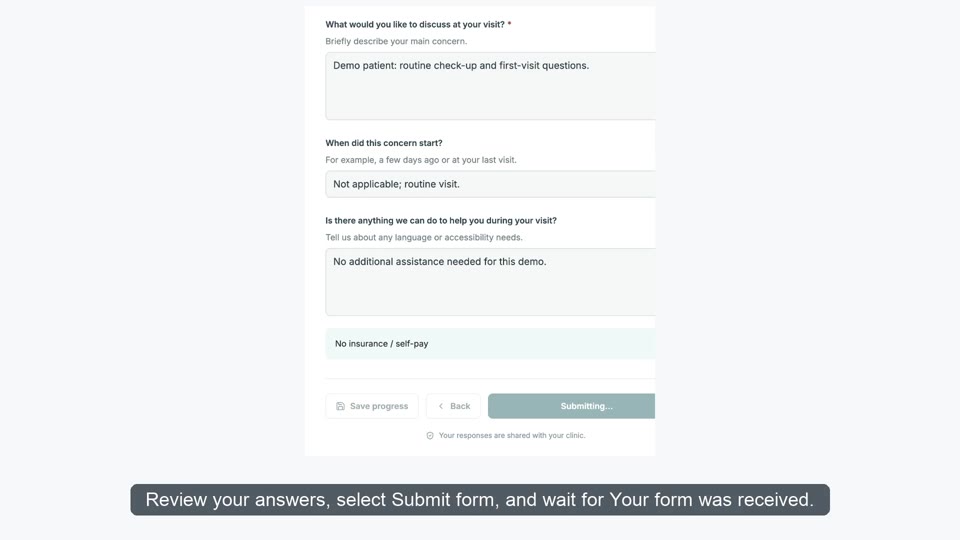
Choose a message or patient form
Send a message or form from the patient-linked communication panel.
 0:51
Review a submitted form and completed PDF
Submit a form as the test patient and review the answers as staff.
 0:30
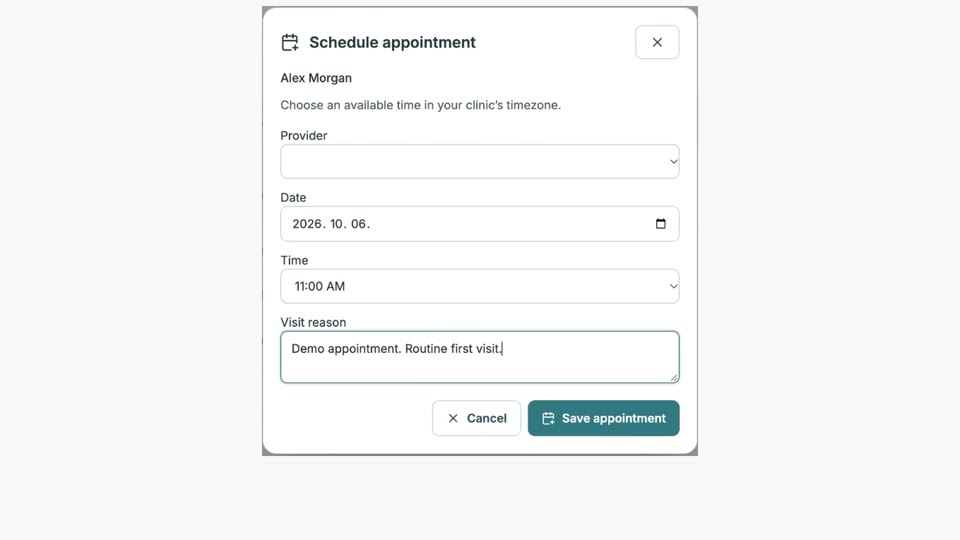
Create an appointment
Choose a time, save the visit and check the reopened schedule.
 0:19
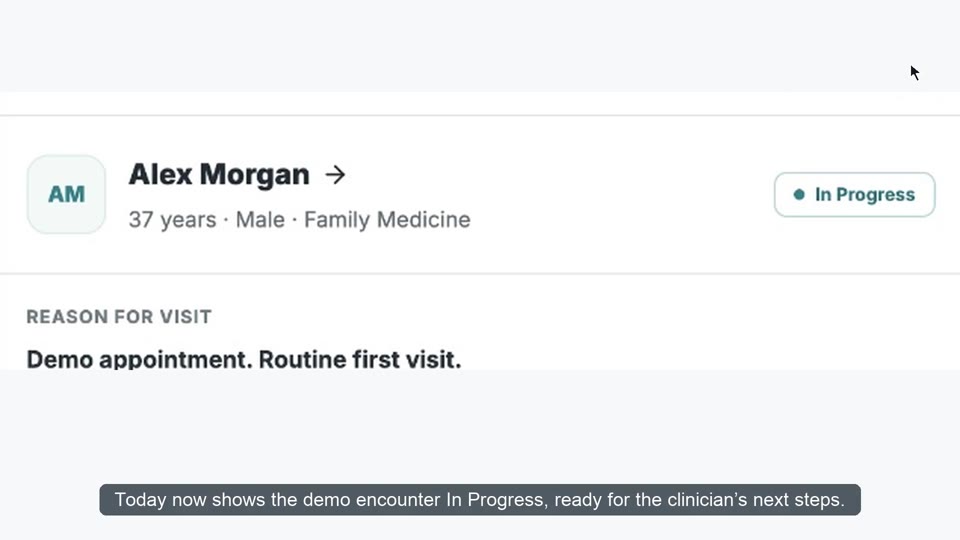
Check in a patient
Check in the intended visit and inspect its status.
 0:37
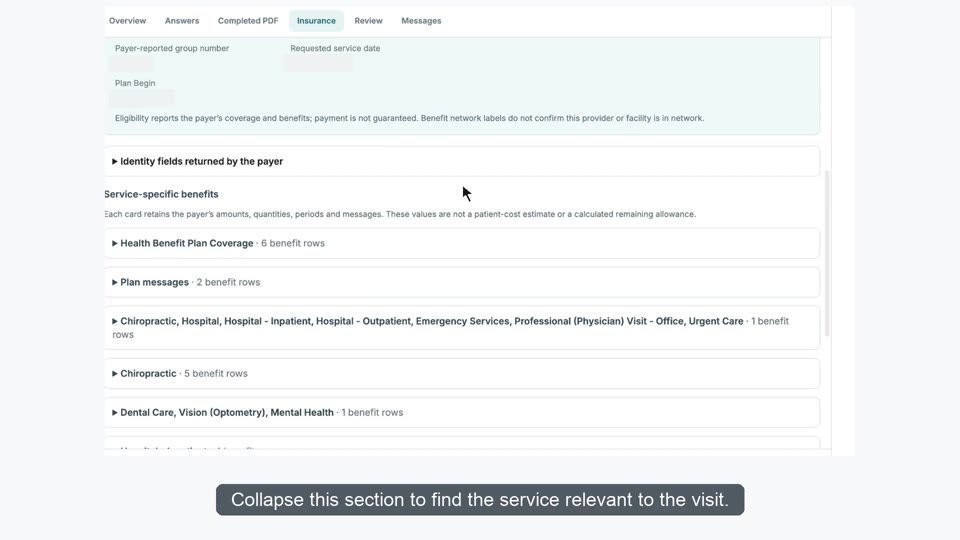
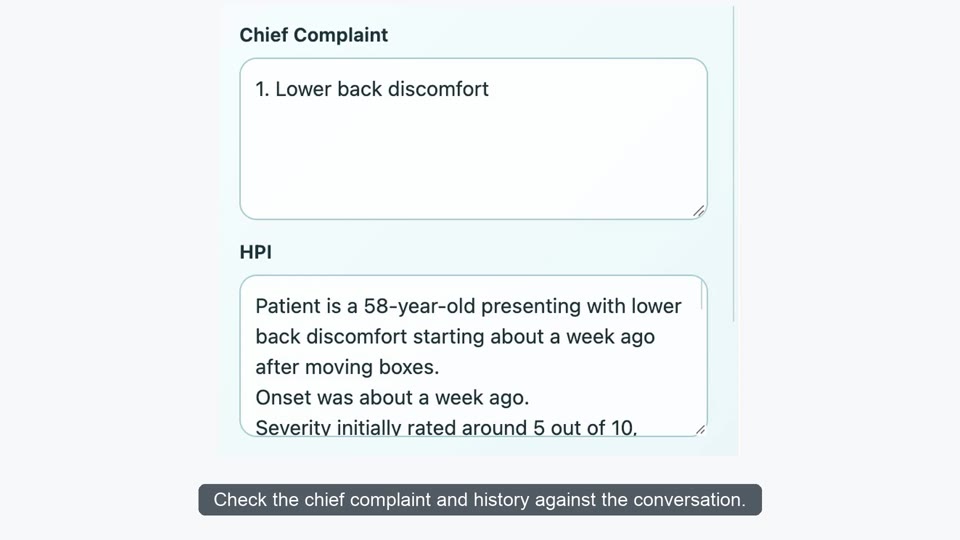
Read coverage, benefits and identity differences
Inspect coverage, identity differences, benefit limits and review status.
 1:17
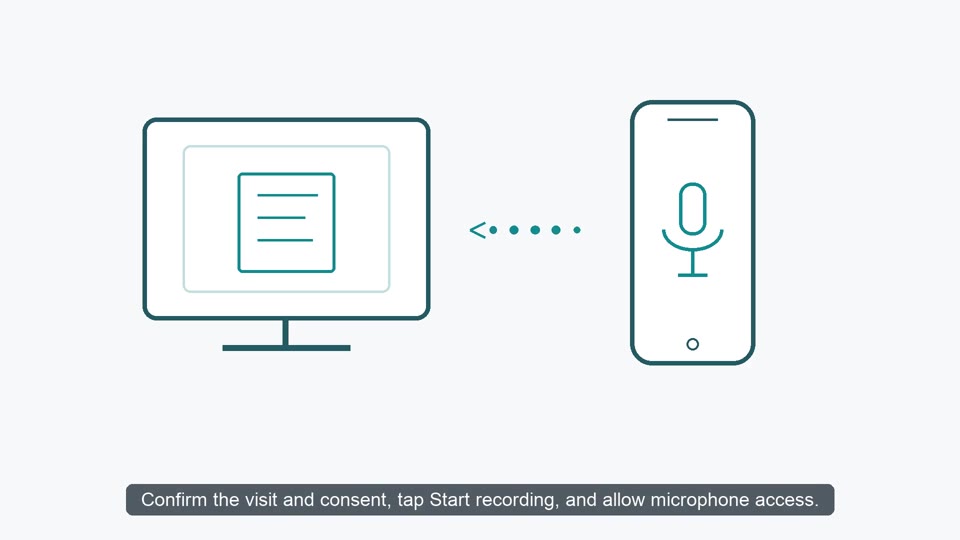
Record a visit with HUVA Scribe
Record the visit and review the draft before writing to eCW.
 0:33
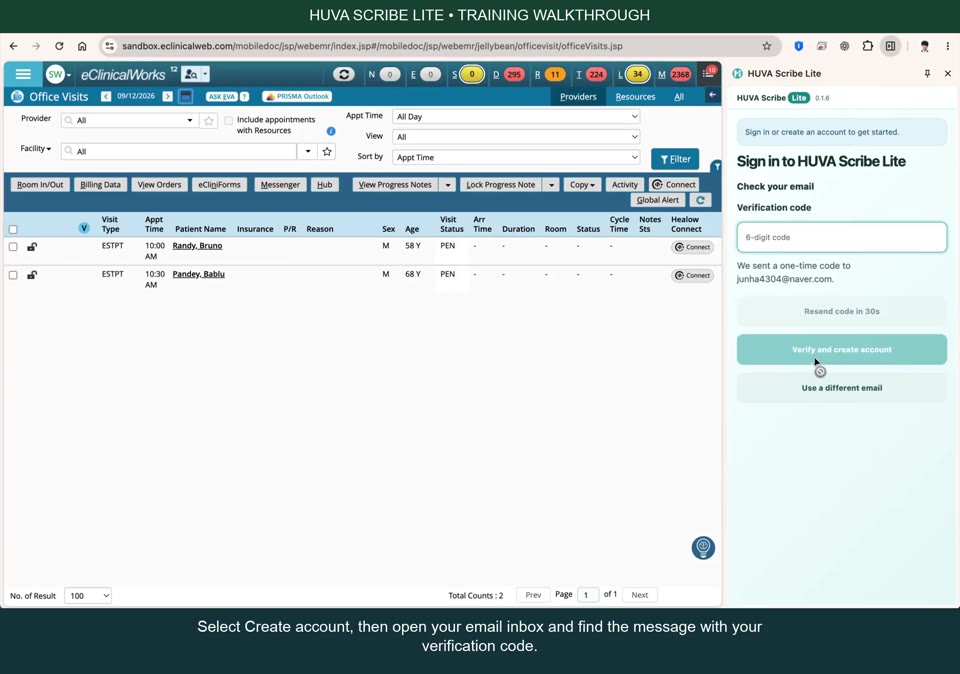
Use your phone as the Scribe microphone
Phone pairing, recording and draft handoff — illustrated walkthrough.
 4:34
Watch the complete HUVA Scribe walkthrough
HUVA Scribe English walkthrough
Need a person?
Tell the HUVA team the product, screen and exact non-sensitive error message. Keep patient information and credentials out of your message.
contact@huver.aiGuide chat answers questions from HUVA documentation. Staff support starts with an email you send to the address above. Opening your email app does not send a request.
Check your email app for sent messages or delivery errors. If the link does not open, copy contact@huver.ai into your email app.
Billing and refund requests
The HUVA team reviews refund requests manually. Email contact@huver.ai for help with a charge or subscription. Keep card details, passwords and patient information out of your email.
For HUVA Chat, open the separate service.